
How to Transfer Outlook to a New Computer: Emails, Calendar and Signatures
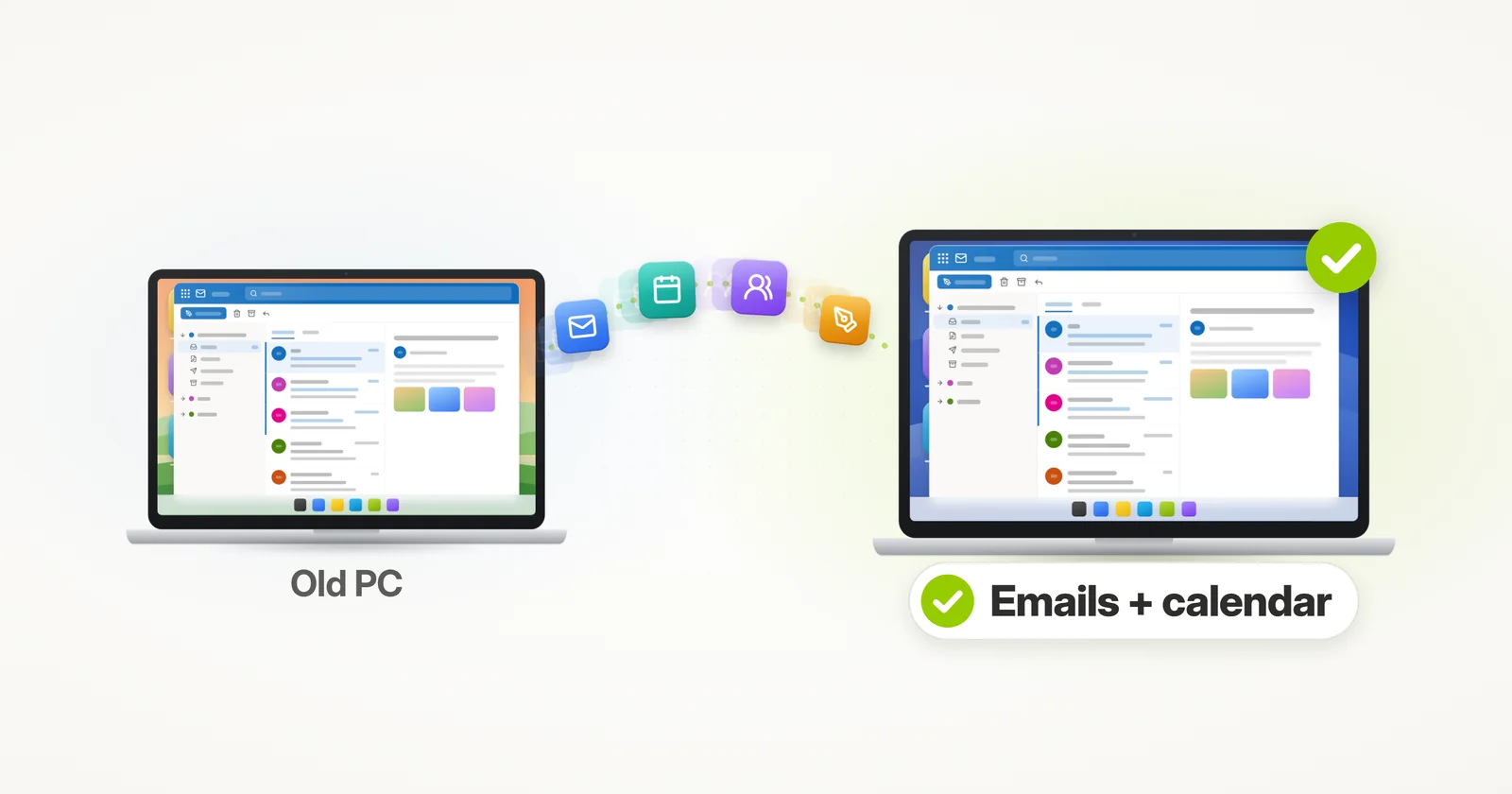
Need to transfer Outlook to a new computer, along with your emails, calendar, contacts, accounts and signatures? This tutorial will show you how.
There are two ways to go about it. By hand, you set up each email account again, move your Outlook data files and copy your signatures over – how much of that you need depends on your type of email account. Or you let Zinstall transfer Outlook for you, already installed and set up just like on the old computer, along with your other programs and files.
How do I transfer Outlook to a new computer?
Short answer: Zinstall WinWin transfers Outlook to the new computer already installed, with your emails, calendar, contacts, accounts and signatures – along with your other programs and files. By hand, it depends on your email account: Microsoft 365, Exchange and Outlook.com accounts come back when you add them to Outlook on the new computer, while POP mail, archive .pst files and the signatures kept on your computer have to be moved yourself.
How do I transfer my old Outlook emails to my new computer?
It depends on your email account. If your mail is kept on the server – Microsoft 365, Exchange, Outlook.com or IMAP – add the same account to Outlook on the new computer, and it downloads your mail again. If it is a POP account, your mail is only in the Outlook data file (.pst) on the old computer, so that file has to come along.
For POP accounts and for archives, copy each .pst file to the new computer, set up the account there, then open the .pst in Outlook. The .pst doesn’t bring your account settings, so you set up each account yourself.1
This guide is about your own Outlook on a new computer. Moving your mail into Gmail or another email account is a different job.
Is there a way to export all my emails from Outlook?
Yes. Classic Outlook can export a whole account – emails, calendar, contacts and tasks – to one .pst file (Open & Export, then Import/Export),2 and Outlook on the new computer can import that file.3
Two things to know. The export takes only what is on your computer – by default, Outlook keeps just the last year of mail from the server – and it leaves out your message rules, blocked senders, account settings and signatures.
How do I transfer my Outlook calendar to a new computer?
With a Microsoft 365, Exchange or Outlook.com account, your calendar is kept online with your mail, so it shows up again as soon as you add the account to Outlook on the new computer. With a POP or IMAP account it isn’t: those accounts sync email only,4 so the calendar and contacts are on the old computer alone.
For those, export the calendar and contacts to a .pst file on the old computer and import it on the new one, as above – or transfer Outlook with everything in it.
Where are Outlook emails stored?
On your computer, in an Outlook data file. POP accounts and archives use a .pst file, which holds the only copy of that mail. Microsoft 365, Exchange, Outlook.com and IMAP accounts use an .ost file, a local copy of the mail kept on the server.
That is why an .ost file isn’t moved to a new computer – Outlook builds a new one when you add the account – while a .pst file has to be.
Where are PST files located?
In current versions of Outlook, .pst files are saved in the Outlook Files folder in your Documents: C:\
An archive you made yourself can be anywhere you saved it, so check every .pst file you use before you leave the old computer behind.
Do my Outlook signatures transfer?
Not by themselves, in most cases. A .pst export doesn’t include them, and only the default signatures of a Microsoft 365 or Outlook.com mailbox follow your account online – every other signature has to be copied over from the old computer by hand.
Zinstall transfers your signatures with the rest of Outlook, so all of them are there on the new computer, just as you made them.
Where do Outlook signatures get saved?
In classic Outlook, in the Signatures folder of your Windows profile: C:\
With a Microsoft 365 or Outlook.com mailbox, current Outlook also saves your default signatures in the mailbox, so they show up wherever you sign in; the other signatures stay on the computer where you made them. POP, IMAP and on-premises Exchange accounts don’t roam signatures at all.5
Doable? Yes. Easy? Not exactly. Every account set up again, every .pst file found and moved, the calendar and contacts exported and imported, the signatures copied by hand – and Outlook’s own settings made again. To make things much, much easier, you can just let a dedicated transfer product do this whole thing for you. Read on for instructions on that.
Automatic Transfer of Outlook to a New Computer
The easiest way to transfer Outlook to a new computer is to use a dedicated transfer tool – Zinstall WinWin. No exports, no imports, no accounts to set up again.
It transfers Outlook itself, already installed, with your emails, calendar, contacts, accounts, passwords and signatures, your .pst data files, and even the addresses Outlook suggests as you type. And not just Outlook: all other apps you have as well, along with your profiles, accounts, personalization, and all files from your old computer – automatically.
This works for Outlook 2003, 2007, 2010, 2013, 2016, 2019 and Microsoft 365, and from Windows XP, Vista, 7, 8 or 10 to a new Windows 11 computer. Yes, this does mean that you can transfer Outlook even from XP to Windows 11!
It even transfers your license and serial number as you have them on the old computer. Of course, Outlook will still validate your license after the transfer, and you should have a proper legal license to pass that validation. However, this means that if you do have a valid legal license, you can transfer even if you do not have the installation disks or don’t remember your serial number.
And it does not just copy files or profiles; apps get installed automatically on the new computer, and configured just like on the old one. You don’t need to install them yourself and you don’t need to configure them yourself.
It requires no technical knowledge to use, too. If you know how to download a file from the internet, you know how to use it – and can save a lot of time and avoid a lot of frustration when you transfer Outlook to a new computer.
How to transfer Outlook from one computer to another
- Download Zinstall WinWin on both computers. Don’t set up Outlook on the new computer before the transfer.
Note: You can download WinWin here, and its user guide here. - Run Zinstall WinWin on the old computer.
- Run Zinstall WinWin on the new computer.
- You don’t need to do any configurations for the computers to connect – it’s automatic.
- If the computers are already connect to same router, same Internet connection, or same wireless connection, you don’t need anything else.
- If the computers are not connected at all, connect them with a network / Ethernet cable.
- If you’d like to select which applications and files you want to transfer, press the Advanced menu. If you just want to transfer everything, you don’t need to go to the Advanced menu. Outlook will be transferred automatically.
- Press “Go” on the new computer to start the transfer
- The transfer will take a while (depending on how much data you have to transfer), and report to you when done.
That’s it!
Once the transfer is done, Outlook will be all set on the new computer, with your emails, calendar, contacts, accounts and signatures – just like on the old computer.
And not just Outlook – this transfers your other apps, profiles, settings and files as well.
The new computer will feel just like home.
Should I set up Outlook on the new computer before the transfer?
No – better not. If you open Outlook on the new computer and go through its setup first, it creates a new, empty Outlook profile, and that blocks your old profile from being transferred: after the transfer, you would still see the new, blank Outlook.
If that has already happened, here is how to remove the new profile and run the transfer again – it skips everything that is already there, and brings over what is missing.
What about the new Outlook for Windows?
The new Outlook works with your accounts online and keeps a copy of your mail, calendar and contacts on the computer, so on a new computer you mostly just sign in again. Since 2026 it can also import a .pst file – mail, calendar, contacts and tasks – from its Settings, under Files.
Classic Outlook is the one that keeps years of .pst files, local calendars and signatures on your computer – and that is the Outlook the transfer brings over, installed and set up as it was.
Ready to transfer Outlook and the rest of your stuff to your new computer?
Video tutorial – how to transfer Microsoft Outlook to a new computer
Sources
1. Microsoft Support: Find and transfer Outlook data files from one computer to another, updated April 2026
2. Microsoft Support: Export emails, contacts, and calendar items to Outlook using a .pst file, updated May 2026
3. Microsoft Support: Import email, contacts, and calendar from an Outlook .pst file, updated August 2026
4. Microsoft Support: Sync basics – what you can and cannot sync, updated September 2026
5. Microsoft Support: Outlook roaming signatures, updated April 2024
guaranteeAny PC, any Windows Buy now