Transfer everything from old computer to new computer with Windows 11
Transfer programs and files to new computer
Transfer files from one computer to another
Research data: Windows and migration statistics
Transfer Microsoft Office to new computer
Restore programs and files from a broken or dead computer
Transfer directly from an old hard drive
Transfer to new computer using a USB hard drive
Corporate Windows 11 migration
User Profile Migration to new PC / new domain
How To Migrate Local Profiles to Azure AD
Migration to Server 2019 / 2016
Transfer everything from old computer to new computer with Windows 11
Transfer programs and files to new computer
Transfer files from one computer to another
Research data: Windows and migration statistics
Transfer Microsoft Office to new computer
Restore programs and files from a broken or dead computer
Transfer directly from an old hard drive
Transfer to new computer using a USB hard drive
Corporate Windows 11 migration
User Profile Migration to new PC / new domain
How To Migrate Local Profiles to Azure AD
Migration to Server 2019 / 2016
Transfer programs and files to new computer
Transfer files from one computer to another
Transfer Microsoft Office to new computer
Restore programs and files from a broken or dead computer
Transfer directly from an old hard drive
Transfer to new computer using a USB hard drive
Move To New PC - Compare Options
Migration Kit Pro - Advanced Transfer
Transfer programs and files to new computer
Transfer files from one computer to another
Transfer Microsoft Office to new computer
Restore programs and files from a broken or dead computer
Transfer directly from an old hard drive
Transfer to new computer using a USB hard drive

Updated February 2026 · 4 minute read
How to Transfer Chrome to a New Computer with Windows 11 (Passwords and Bookmarks Included)
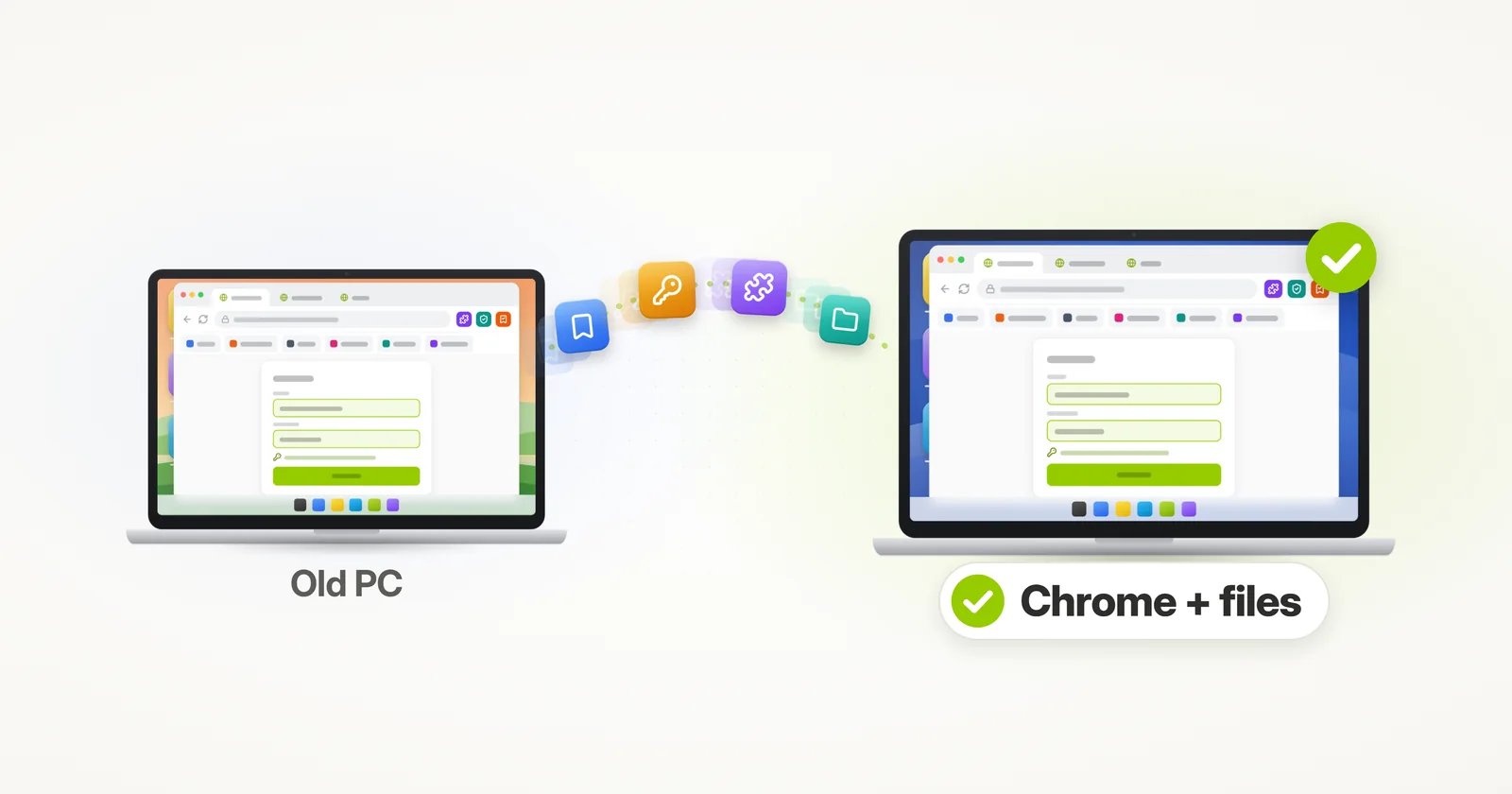
Need to transfer Chrome to a new computer, along with your bookmarks, favorites, passwords, logins, preferences, accounts and everything else in your Chrome profile? This tutorial will show you how.
There are two primary ways to copy Chrome to another computer – manual transfer and automatic copy. We will cover both in this guide.
Manual transfer of Chrome to a new computer
In order to manually transfer Google Chrome to a new computer, you will need to follow these steps:
- Copy the “User Data” folder found in this path to a portable media device such as a USB or external drive:
C:\Users\%username%\AppData\Local\Google\Chrome\ - Export this registry key to the same portable media:
[HKEY_CURRENT_USER\Software\Google\Chrome\PreferenceMACs] - Move the drive to the new computer.
- On the new computer, copy all of the files in the “User Data” folder from your portable media to “C:\Users\%username%\AppData\Local\Google\Chrome\”
- Double click on the registry key that, in step 2, you saved to the portable media device.
- Now, download and install Chrome, and launch it.
Doable? Yes. Easy? Not exactly. Of course, manual transfer is just one of the options. To make things much, much easier, you can just let a dedicated transfer product do this whole thing for you. Read on for instructions on that.
Automatic Transfer of Chrome to a New Computer
The easiest way to transfer Chrome from one computer to another is to use a dedicated transfer tool – Zinstall. No registry edits or folder copy required.
It transfers your whole Chrome profile – bookmarks, favorites, saved passwords, history and extensions – along with all of the files from your old computer, automatically.
And it does not just copy the profile folder: Chrome comes up on the new computer already set up just like on the old one – your bookmarks in place, your saved passwords working, your extensions installed. Nothing to export, import or sign in to.
It requires no technical knowledge to use, too. If you know how to download a file from the internet, you know how to use it – and can save a lot of time and avoid a lot of frustration when you transfer Chrome to a new computer.
How to transfer Chrome to a new computer
- Run Zinstall on your current computer (the one you are transferring from).
Note: You can get Zinstall here. - Run Zinstall on the new computer
- You don’t need to do any configurations for the computers to connect – it’s automatic
- If the computers are already connect to same router, same Internet connection, or same wireless connection, you don’t need anything else
- If the computers are not connected at all, connect them with a network / Ethernet cable
- If you’d like to select which files you want to transfer, press the Advanced menu. If you just want to transfer everything, you don’t need to go to the Advanced menu.
- Press “Go” on the Windows 11 or Windows 10 computer to start the transfer
That’s it!
Once the transfer is done, Chrome will be all set on the new computer, with your bookmarks, logins, passwords, even your recently viewed websites – just like on the old computer.
And not just Chrome – all of the files from your old computer come across as well.
The new computer will feel just like home.
Ready to transfer Chrome and your files to your new computer?
Can I transfer Chrome to a new computer without a Google account?
Yes. Signing in and syncing is optional – it is entirely possible to move Chrome without any Google account. You can copy the profile folder by hand (see our step-by-step guide on copying your entire Chrome profile to a new computer), or use the automatic transfer described above, which moves Chrome with no account needed.
Do my Chrome passwords transfer to the new computer?
If you use Google sync, your passwords follow your account. Without sync, be careful: Chrome encrypts saved passwords to your Windows user account, so manually copying files to another computer does not bring them along. An automatic transfer does move them – see our full guide on transferring your passwords to a new computer.
Does my browsing history, settings and extensions transfer as well?
With a whole-profile transfer – yes: history, settings, extensions, autofill and open tabs arrive along with your bookmarks. A bookmarks-only export leaves all of that behind; if bookmarks are all you need, see how to transfer favorites and bookmarks from one computer to another.
Video tutorial – how to transfer Chrome to a new computer, bookmarks and passwords included
Related Guides
guarantee Buy now