
How to Transfer Lightroom to a New Computer: Presets, Catalog and Photos
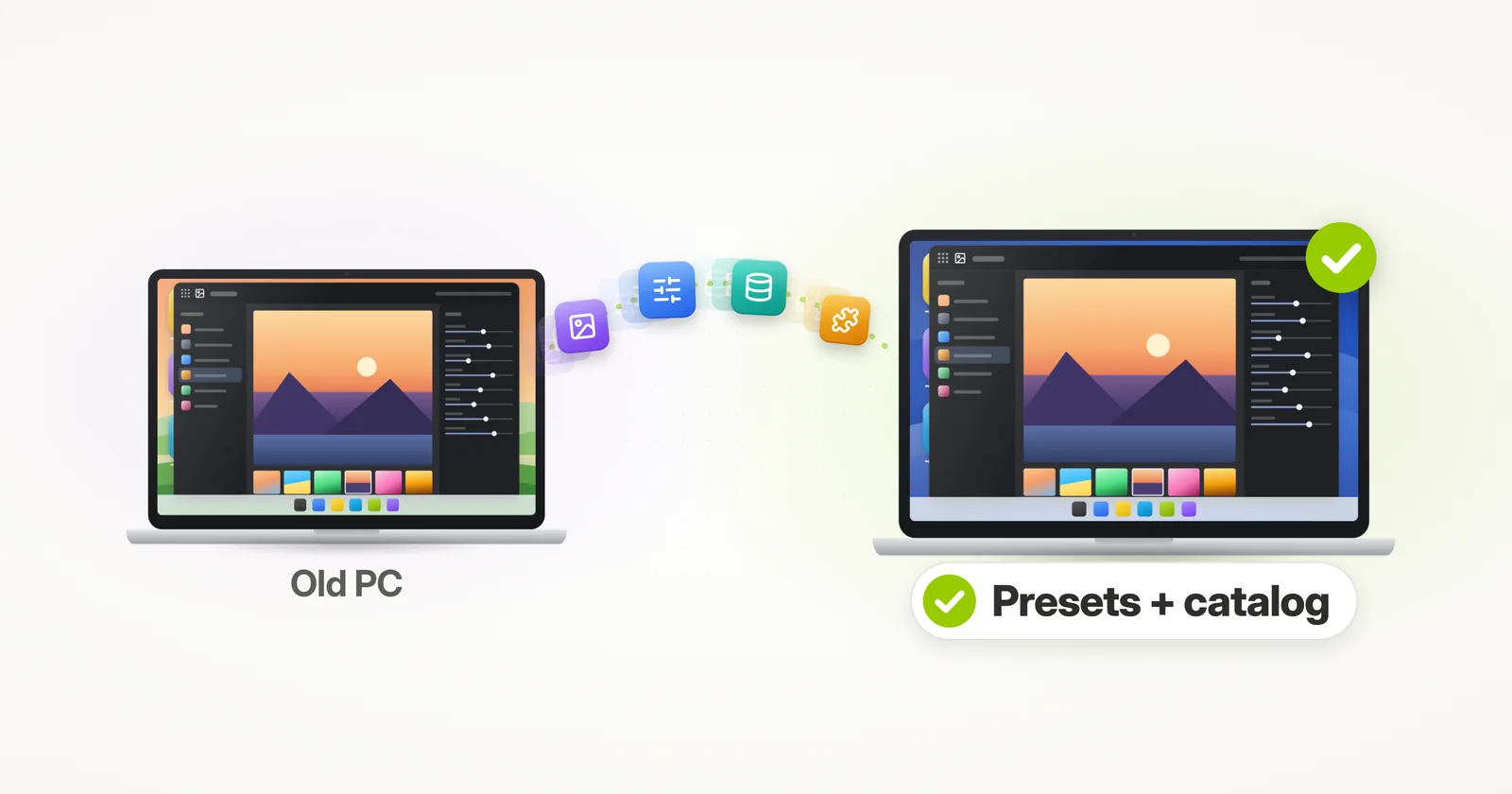
Need to transfer Adobe Lightroom to a new computer, along with your presets, catalog, photos and edits? This tutorial will show you how.
There are two ways to go about it. By hand, you install Lightroom again, then find and copy your catalog, your photos and your presets yourself – and re-link any photos Lightroom can’t find. Or you let Zinstall transfer Lightroom for you, already installed and set up just like on the old computer, along with your other programs and files.
How do I transfer Lightroom to a new computer?
Short answer: Zinstall WinWin transfers Lightroom to the new computer already installed, with your presets, catalogs, previews, photos and settings – along with your other programs and files. By hand, you install Lightroom Classic from Creative Cloud and sign in, then copy your catalog, your photos and your presets over yourself, keeping the photos in the same folders so the catalog can find them.
This is about Lightroom Classic, the Lightroom that keeps your catalog and photos on your computer. The cloud-based Lightroom keeps them in Adobe’s cloud – more on that below.
Do my Lightroom presets transfer to the new computer?
Not by themselves. In Lightroom Classic, presets are files on your computer, and they don’t sync to your Adobe account1 – so installing Lightroom Classic and signing in on the new computer gives you only Adobe’s built-in presets. Your own presets, and the ones you bought or downloaded, stay on the old computer until you move them.
Zinstall transfers your presets with the rest of Lightroom, so they are on the new computer in their place, ready to use.
How do I transfer Lightroom presets to a new computer?
By hand, export them on the old computer and import them on the new one. In the Develop module, right-click a preset group and choose Export Group (or right-click a single preset and choose Export), copy the files to the new computer, then click the + at the top of the Presets panel and choose Import Presets – it takes the preset files or a .zip.2
That covers your Develop presets. Export presets, metadata presets, watermarks, filename templates and the other templates are kept in a separate folder, which you copy over yourself.
Where are Lightroom presets stored?
Develop presets are .xmp files in C:\
The quickest way to open them is from Lightroom Classic itself: Edit > Preferences > Presets has buttons that show the presets folders. If “Store presets with this catalog” is turned on there, the presets you’ve made since are kept in the catalog’s folder instead.4
How do I move my Lightroom catalog to a new computer?
Quit Lightroom Classic, then copy the catalog to the new computer: the .lrcat file and the files next to it – the .lrcat-data, which holds your AI masks and edits (without it they are lost for good5), and the previews. Copy your photos as well, keeping the same folders and drive letters. Then double-click the .lrcat file on the new computer.6
If the new computer has a newer Lightroom Classic, it upgrades the catalog as it opens it and keeps the old copy as it was.5 And if any photos end up in a different place, Lightroom shows them as missing, and you re-link them by hand (see below).
Where is my Lightroom catalog?
By default, in the Lightroom folder of your Pictures: C:\
Next to the .lrcat file you’ll find its .lrcat-data, its previews and a Backups folder. One thing to check on Windows 11, which often backs up the Pictures folder to OneDrive: Adobe advises against keeping a catalog in a folder that OneDrive syncs.5
Does the Lightroom catalog include my photos?
No. The catalog holds your edits, keywords, ratings and collections, and remembers where each photo is – the photos themselves stay in their own folders, untouched. That’s why a move needs both: the catalog without the photos shows previews and question marks, and the photos without the catalog come without your collections, and usually without your edits.
Why are my photos missing after moving the Lightroom catalog?
Because the catalog remembers where each photo is, drive letter included. If your photos land somewhere else on the new computer – a different drive letter, user name or folder – Lightroom marks the folders with a question mark and the photos with an exclamation mark.
Adobe’s first tip: if the drive letter changed, change it back to the one Lightroom expects. Otherwise, right-click a missing folder in the Folders panel, choose Find Missing Folder and point Lightroom to where the folder is now.7 Zinstall avoids this: it keeps your drives as they were, even when the new computer has fewer of them (how it handles multiple drives), so Lightroom finds your photos where it left them.
Can I use Lightroom on more than one computer?
Yes. With a Creative Cloud plan you can install Lightroom on as many computers as you like and be signed in on two of them at the same time.8 If you sign in on a third, Adobe asks you to sign out of one of the others – right there, or from your Adobe account page.
When you move to a new computer, sign out on the old one (Help > Sign Out) to free its place – uninstalling Lightroom or wiping the computer doesn’t.9
What about the cloud-based Lightroom?
The cloud-based Lightroom keeps your photos, edits and albums in Adobe’s cloud, and syncs its presets and profiles with your account1 – so on a new computer you install it, sign in, and your library comes back.
Lightroom Classic is the one that keeps years of catalogs, presets and photos on your computer, with nothing synced but smart previews – and that is the Lightroom the transfer brings over, installed and set up as it was.
Do my Lightroom plug-ins transfer?
Not by themselves. Lightroom Classic loads plug-ins from its Modules folder (C:\
Zinstall transfers your plug-ins along with Lightroom and your other Adobe apps, so they are already in place.
Doable? Yes. Easy? Not exactly. Lightroom installed again, the catalog folder found and copied, every photo folder moved to the same place, presets exported and imported, the other presets and plug-ins copied by hand – and any missing photos re-linked one folder at a time. To make things much, much easier, you can just let a dedicated transfer product do this whole thing for you. Read on for instructions on that.
Automatic Transfer of Adobe Lightroom to a New Computer
The easiest way to transfer Adobe Lightroom to a new computer is to use a dedicated transfer tool – Zinstall WinWin. No exports, no imports, no photos to re-link.
It transfers Lightroom itself, already installed, with your presets, catalogs, catalog backups, previews, photos, settings and configurations – everything to do with Lightroom. And not just Lightroom: all other apps you have as well, along with your profiles, accounts, personalization, and all files from your old computer – automatically.
Creative Cloud still checks your subscription, so after the transfer you sign in with your Adobe ID on the new computer – and everything else is already in place, just as you left it.
And it does not just copy files or profiles; apps get installed automatically on the new computer, and configured just like on the old one. You don’t need to install them yourself and you don’t need to configure them yourself.
It requires no technical knowledge to use, too. If you know how to download a file from the internet, you know how to use it – and can save a lot of time and avoid a lot of frustration when you transfer Lightroom to a new computer.
How to transfer Adobe Lightroom to a new computer
- Download Zinstall WinWin on both computers.
Note: You can download WinWin here, and its user guide here. - Run Zinstall WinWin on the old computer.
- Run Zinstall WinWin on the new computer.
- You don’t need to do any configurations for the computers to connect – it’s automatic.
- If the computers are already connect to same router, same Internet connection, or same wireless connection, you don’t need anything else.
- If the computers are not connected at all, connect them with a network / Ethernet cable.
- If you’d like to select which applications and files you want to transfer, press the Advanced menu. If you just want to transfer everything, you don’t need to go to the Advanced menu. Lightroom will be transferred automatically.
- Press “Go” on the new computer to start the transfer
- The transfer will take a while (depending on how much data you have to transfer), and report to you when done.
That’s it!
Once the transfer is done, Lightroom will be all set on the new computer, with your presets, catalogs, previews and photos – just like on the old computer. When you start your next project, everything is set up and ready to go.
And not just Lightroom – this transfers your other apps, profiles, settings and files as well.
The new computer will feel just like home.
Ready to transfer Adobe Lightroom and the rest of your stuff to your new computer?
Video tutorial – how to transfer Adobe Lightroom and other apps, files from one computer to another
Sources
1. Adobe Help: Lightroom Classic and Lightroom ecosystem, feature comparison, updated February 2026
2. Adobe Help: Apply presets in Lightroom Classic, updated October 2026
3. Adobe Help: Preference file and other file locations, Lightroom Classic, updated March 2024
4. Adobe Help: Set preferences for working in Lightroom Classic, updated September 2024
5. Adobe Help: Lightroom Classic catalog FAQ, updated February 2025
6. Adobe Help: How to create and manage catalogs in Lightroom Classic, “Copy or move a catalog”, updated December 2024
7. Adobe Help: How to find missing photos in Lightroom Classic, updated September 2024
8. Adobe Help: Install, activate, or use Adobe apps on an additional device, updated September 2026
9. Adobe Help: activating and deactivating apps when you switch computers, updated February 2026
10. Adobe Help: Export presets, settings, and plug-ins in Lightroom Classic, updated July 2024
guaranteeAny PC, any Windows Buy now