
How Do I Backup My Entire Computer?
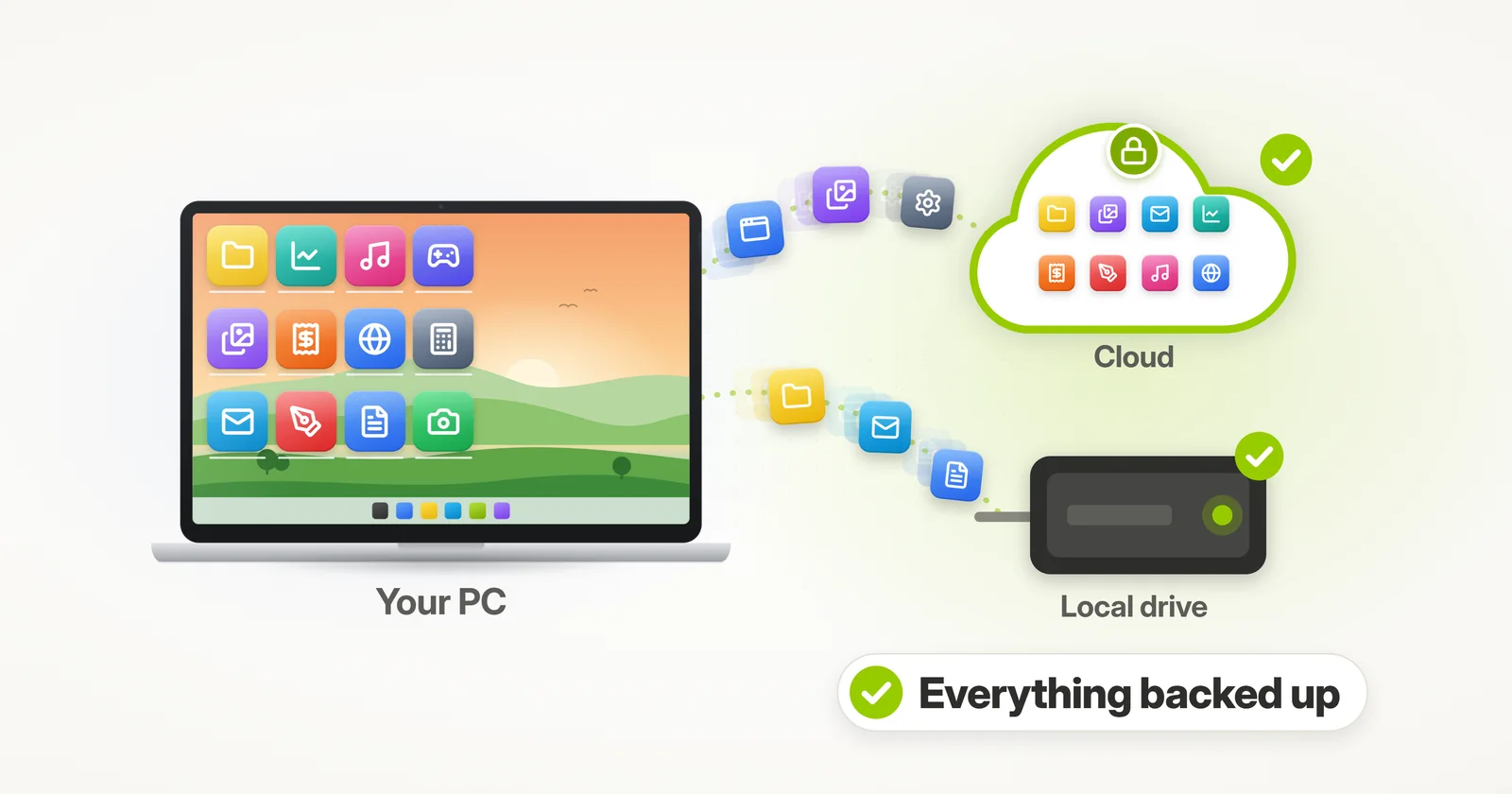
You know that you should backup your entire computer. For many of us, a sudden computer crash (and they are always sudden) would mean a serious setback. When was my last backup? Where is it stored? Is it up to date? And even if no files are lost, how long will it take to restore everything to a new computer, reinstall all programs, reconfigure accounts and settings, put all of the files where they are supposed to go – and just generally get back to work?
This guide has a simple goal: to ensure that you have a full backup of your entire computer, that it is up to date, and that you can restore everything from it when disaster does happen.
Short answer: Zinstall FullBack backs up your entire computer automatically – programs, settings and files – to an external hard drive, a network drive or the cloud, keeps that backup up to date, and can restore everything to the same PC or a new one. Windows 11’s own tools back up your files and some settings, but not your installed programs.
We will cover:
- What should a full computer backup cover?
- Where to store a full backup of the entire computer?
- How to easily set up a full back of your entire computer (go here if you just want the instructions)
- How to restore from my full backup?
- Summary + Link to backup software
What should a full computer backup cover?
First, let’s define that a “full” or “entire” backup actually means. A common misconception is that if all of your documents and photos are backed up, you are all set.
A backup of all of your documents is of course much, much better than no backup. However, it is often not enough.
What about your emails? Favorites? Accounts and passwords?
What about the data from your tax software? Reports from your accounting apps?
What about the actual programs that you use?
Again, having a file backup is great, and is a giant step in the right direction. It’s just that there is much to your computer than just files, and without that – it won’t feel like “home”.
A backup of your entire computer should thus include:
- Programs and apps – such as Office, Outlook, Quickbooks, Quicken, Photoshop, Lightroom, and any other software packages that you have.
- All data that is used in your programs.
- Accounts, profiles, settings, passwords.
- Documents, Pictures, Videos, Music
- Any other user files, even if not stored in “standard” locations.
Where to store a full backup of the entire computer?
OK, so we know what should go into a full backup. Now, where do we store all of that stuff?
A full backup of your entire computer is going to take up quite a bit of space, so you probably won’t be able to fit it on a small USB stick. Here are some better alternatives:
USB external hard drive:
A USB external drive is essentially a small box that connects to your computer. These drives have lots of room, and are the cheapest option available for backup storage. They are available at Walmart, on Amazon, or at any computer or electronics store.
See instructions on how to very easily backup your entire computer to USB external drive below.
Network drive / NAS:
This is similar to using a USB drive, only in this case, the drive is not connected directly to the computer – it is connected to your internet router, and the computer “talks” to via your home network. Network drives are a bit more expensive than regular USB drives, and require a few more steps to set them up. The advantage is that you do not have to physically connect anything to your computer, and can even backup several computers to one network drive. For a dedicated guide on backup to a network drive, see here: How to backup your entire computer to Network Drive / NAS
Cloud:
Another popular option is to upload your backup to Cloud storage. This essentially means that instead of storing your backup on your own drive, you store it on a server belonging to a Cloud storage provider. The advantage of using Cloud is its “survivability”: your backup will be there even if all of your drives fail at the same time, such as during a natural disaster (flood, fire, etc.).
The downsides of using Cloud are its yearly cost and slow speed (it takes much, much longer to upload data to the Cloud than to store it on a local drive).
Here are some popular Cloud storage options and backup guides for them:
- Dropbox: How to Backup your Entire Computer to Dropbox
- OneDrive: How to Backup your Entire Computer to OneDrive
- Amazon: How to Backup your Entire Computer to Amazon
OK. We now know what we want to backup, and we know where we can store that backup. Let’s see how to actually set this up.
So how do I backup my entire computer, with no tech skills?
The easiest way is an automatic backup that covers everything. There are many ways to back up a computer, and Windows 11 has a few of its own (see what they leave out), but none of them restores your installed programs, and the ones that run automatically save only your files and some settings. We are going to use something a bit more powerful.
The product we will be using here is Zinstall FullBack Pro. It creates a full backup of your entire computer. It keeps that backup up to date, hourly. It can backup to USB drive, network drive or to Cloud. And it can restore everything, even programs.
Here is how to use it backup your entire computer to USB drive or another location:
- Download and run FullBack Pro (you can get a free trial of the backup software here).
- Click the “On” button.
- If you have a USB external hard drive connected, FullBack will locate it automatically, and just start the backup. If not, you can choose where to keep your backup (USB drive, Network drive, Cloud, and many more).
- That’s it!
It really is that simple to keep your entire computer safe.
Video: How To Make a Full Backup Of Windows 11 or Windows 10
Click here to get a free trial, and make a full backup of your entire computer
So what happens once the backup is installed?
Once FullBack starts to run, it performs a complete backup of your entire computer, including programs, settings, accounts, profiles, email, favorites, documents, photos, and all files.
Once that backup is complete, FullBack keeps it up to date, by backing up any changes made to your computer. To save storage space, those backups are incremental, i.e. only the actual changes are stored in your backup – without unnecessary data.
You do not need to manage backup schedules and do not need to remember to make a backup (who can remember this stuff?). It’s all automatic, and always up to date.
Of course, the real reason you have a backup is the restore part. How do you restore a single file that you’ve misplaced? And how do you restore everything, including program files, if your computer crashes? Read on to find out.
How to restore a file that I’ve accidentally deleted?
So you were working on an important document, and now it’s gone. Fear not – that’s exactly why you have set up an automatic backup of your entire Windows 11 or Windows 10! Here is what you do:

- Open your Zinstall FullBack’s Restore wizard.
- If you remember the file’s name, just type it into the search box. It will appear below.
- If you don’t remember what the file was called, but do remember where it was, you can browse your backup files, and find your file like that.
- You can choose to restore from the most recent backup, or go “back in time” – using older versions of your backup, such as yesterday, a week ago, a month ago or even farther back.
- Once you have the file, just hit restore – and it will appear exactly where it was, up to date!
That’s it – your file is back, safe and sound.
My computer crashed. How do I restore everything from my Windows 11 or Windows 10 backup, onto another computer?
This is something you can only do if you have used Zinstall FullBack. It can actually restore all the stuff from your backed up computer (programs, settings, files, emails, accounts, password, favorites, documents, pictures, music, etc.) onto a completely different computer and completely different Windows. Even if you’ve backed up a Windows 10 32bit Dell, and your replacement PC is a Windows 11 64bit HP, Zinstall will still restore everything you’ve got.

To do that, install Zinstall FullBack on the replacement computer. Open your original backup, and follow the prompts for complete restore. When finished, just restart the computer, and you’ll see all the programs, settings and files from your crashed computer.
Video demo – restore from Windows 11 or Windows 10 backup

Can I backup my entire computer to a USB drive AND to Cloud? (The 3-2-1 rule)
If you want to go for an even more comprehensive protection, a good rule to follow is the 3-2-1 rule of backups: always have 3 copies of your data, on 2 different types of storage, 1 of them off-site.1
These days, this extra safe approach means having a local backup (e.g. to backup your entire computer to a USB hard drive) and a Cloud backup (e.g. backup your entire computer to one of the Cloud options) – and keep both up to date. Luckily, FullBack Pro allows you to comply with the 3-2-1 rule by adding another backup target, independent of your original backup.
This way, you can keep two separate backups of your computer – one local, and one on the Cloud. In total, you have 3 copies of your data (computer itself, local drive, Cloud), on 2 types of storage (your own drives and the Cloud), 1 of them off-site (in your Cloud storage).
Another important benefit of using this kind of hybrid backup approach (local + Cloud) is speed. In most recovery scenarios, your local backup is alive and well (as opposed to situations when you must have an off-site location, such as fires, floods etc.) It is much faster to restore from local storage than from the Cloud; having a local backup will allow you to be even more efficient in your restores, without sacrificing the resilience you get with off-site Cloud backup.
Can Windows 11 back up my entire computer by itself?
Not entirely. Windows Backup saves your Desktop, Documents, Pictures, Videos and Music folders to OneDrive, along with your settings and a list of your apps. On a new PC, Microsoft Store apps reinstall, but for other programs you are sent to the web to download the installer again.2 File History copies your files only, to an external drive or a network location.3
The old system image tool, Backup and Restore (Windows 7), is still there but deprecated: for a full-disk backup, Microsoft itself suggests a product from another software publisher.4
Does OneDrive back up my computer automatically?
Yes, for your files. Once OneDrive folder backup is on, your Desktop, Documents and Pictures keep syncing to OneDrive automatically – so a file you delete is deleted there too.5 It doesn’t back up your programs or settings, and the free plan has 5 GB of storage.2
How big of a hard drive do I need to back up my computer?
Plan for about twice the space your computer uses today. The first full backup takes about as much room as the files, programs and settings on your drive, and the earlier versions that let you go back in time need room too. Look at the used space of your C: drive (and any other drive you back up) to size it.
How do I back up my computer to an external hard drive?
Plug the external hard drive in and turn FullBack on: it finds the USB drive by itself, starts the backup, and keeps it up to date from then on. For a step-by-step guide that also restores everything to a new PC, see how to back up your entire computer to an external hard drive.
Summary
Knowing that you need a full backup of your entire computer is the first step towards keeping your stuff safe. A simple file backup is better than no backup; a one-time backup is better than no backup. For true safety and protection, however, you must have an automatic, up to date backup that can restore everything you need.
We believe that the approach outlined in this guide provides the optimal combination of a easy setup (no technical skills required), and an exceptional backup performance and reliability.
You can literally set up a full backup of your entire computer in 5 minutes, and basically forget about it after that.
The next time you’ll have to think about your backup is when you lose a file, or when your computer crashes. When that happens, you’ll thank yourself for spending those 5 minutes on getting a great backup for your computer.
Ready to protect your entire computer without slowing it down?
When disaster strikes: Restore your programs and files from Zinstall FullBack to a new computer
Sources
1. CISA: Data Backup Options, 2012
2. Microsoft Support: Back up and restore with Windows Backup, updated February 2026
3. Microsoft Support: Backup and restore with File History, updated January 2026
4. Microsoft Learn: Deprecated features for Windows client, updated September 2026
5. Microsoft Support: Back up your folders with OneDrive, updated March 2026
guarantee Buy now